 Suitaar news
Updates
Maintenance
Posts
suitaar.com
updates 27 October 2026
New: a three-step setup after your first login
When you log in to Suitaar for the first time, a short setup now takes you to your first alert in your team’s chat.
- Choose where your alerts go. Add a Slack incoming webhook or a Discord webhook. Suitaar sends a test message.
- Choose where your alerts come from. Add a source for Alertmanager, Grafana or another tool, and copy its key. Suitaar connects the source to your channel.
- Send a test alert. It shows up in your channel. If it does not, the page says what to check.
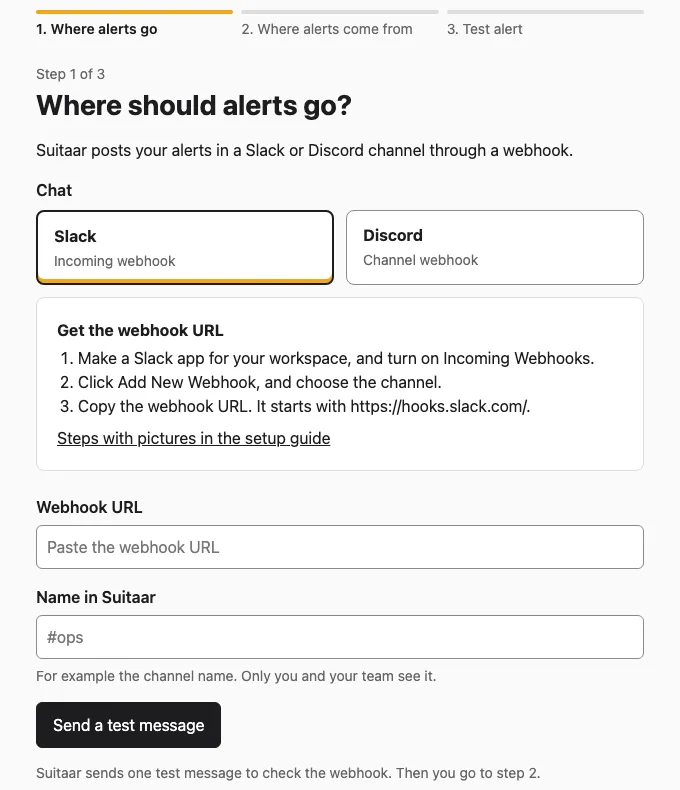 Step 1: choose where your alerts go.
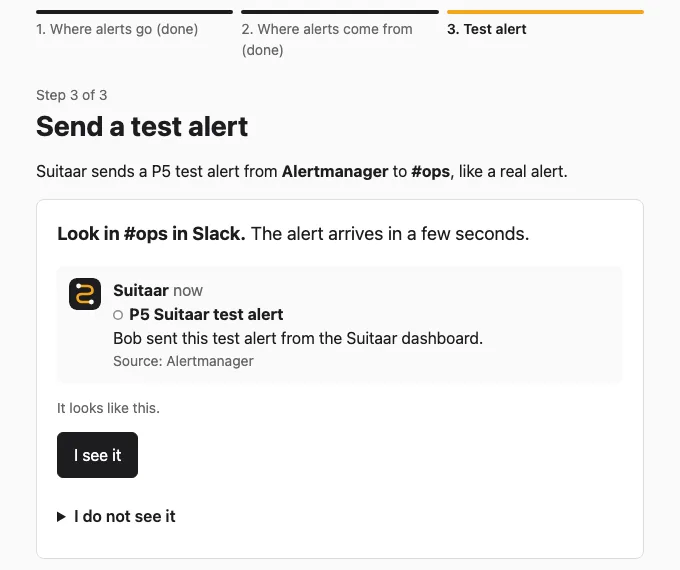 Step 3: send a test alert and look for it in your channel.
Then change one URL in your tool, and your real alerts go to the same channel.
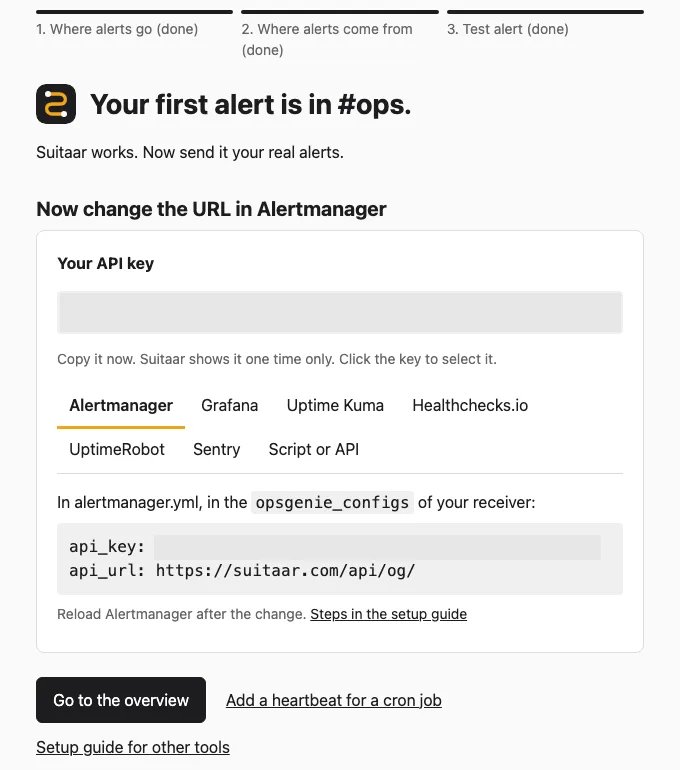 The last screen shows your key once, and the change for your tool.
If you stop halfway, the overview shows “Finish setup” and the step you are on.
Log in with Google or GitHub · Setup guide
The free plan stays free after the beta: 3 channels, no payment details.